
PREVIEW, TEST AND RESEND WOOCOMMERCE ORDER EMAILS

Every order has emails attached to it: the New order notification to your store, and Processing, Completed and invoice emails to your customer. When one needs to go out again, WooCommerce does not show you who it will reach, and resending often means changing the order status and back again.

This plugin adds an Order emails panel to each supported WooCommerce order screen. For every core order email, you can see who receives it, preview it with that order’s real details, send a test to yourself, or resend it to the right people without touching the order status.
HOW IT WORKS

1. Open a WooCommerce order and find the Order emails panel.

2. Check the email’s audience, recipients, subject, status and template.

3. Preview it, send an isolated test to one address you control, or choose Resend.

4. For a live resend, review every recipient and confirm. The plugin resolves and checks the recipients again before sending.

REQUIREMENTS

  • WordPress 6.6 or newer
  • WooCommerce 9.8 or newer
  • PHP 8.0 or newer
  • High-Performance Order Storage (HPOS) or the classic order screen

Tested on PHP 8.0 and 8.3, with WooCommerce 9.8 and 11.0. If something is older than required, the plugin stays inactive and explains what is missing.

See who every email goes to

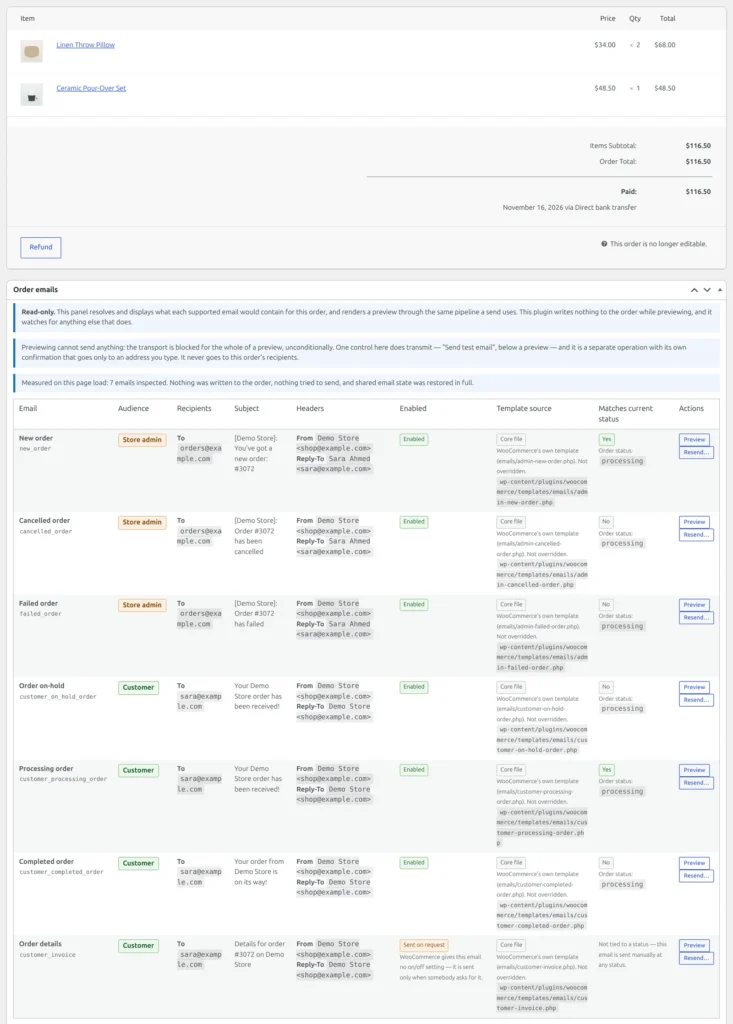
Order emails panel on a WooCommerce order showing each email's audience and recipients

WooCommerce order emails have different audiences, and it is not always obvious which is which. The New order email goes to your store. The customer’s confirmation is normally the Processing or On-hold email. Mix them up and you resend the wrong one.

The panel shows, for each email on this order:

  • whether it goes to your store or to the customer
  • the exact To, Cc and Bcc addresses, including whether Cc and Bcc will actually be transmitted
  • the subject, From and Reply-To addresses, and whether the email is switched on
  • which template it uses: WooCommerce core, your theme, another plugin or a block template
  • whether it matches the order’s current status

Preview the real email

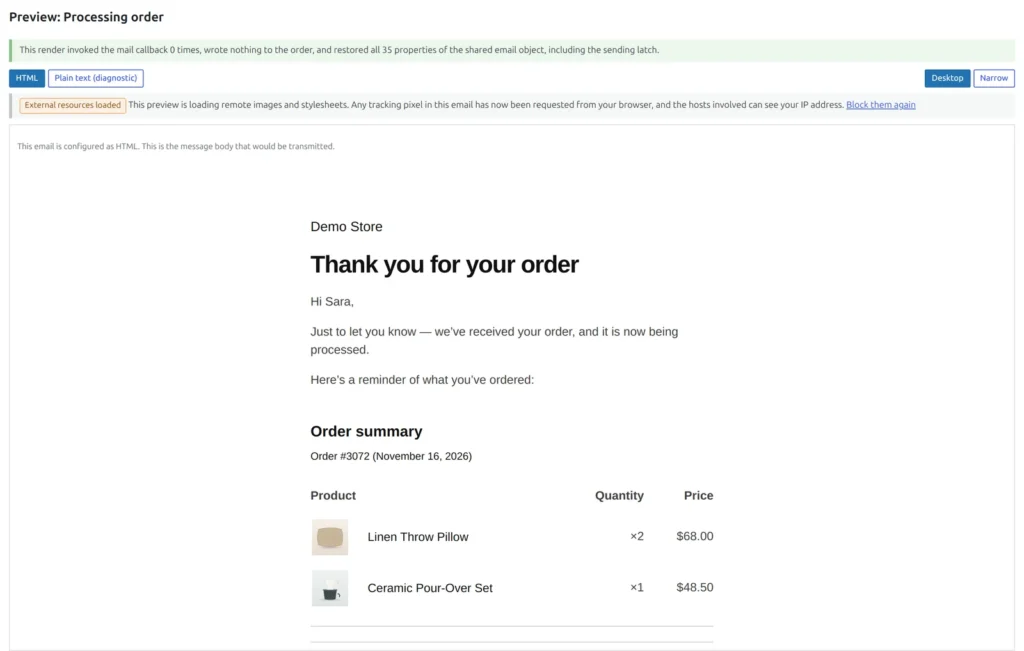
Preview of a WooCommerce Processing order email with the order's real details

Preview the email as this order would produce it, with the customer’s name, items, totals and your store’s active template instead of sample data. Switch between HTML and plain text, and between desktop and narrow-screen width.

Images are held back until you choose to load them, so simply opening a preview does not alert an external image or tracking service. A preview cannot transmit email: sending is blocked before rendering begins. If a template or another plugin tries to send mail during the preview, the attempt is stopped and the panel reports it.

Send a WooCommerce test email to yourself

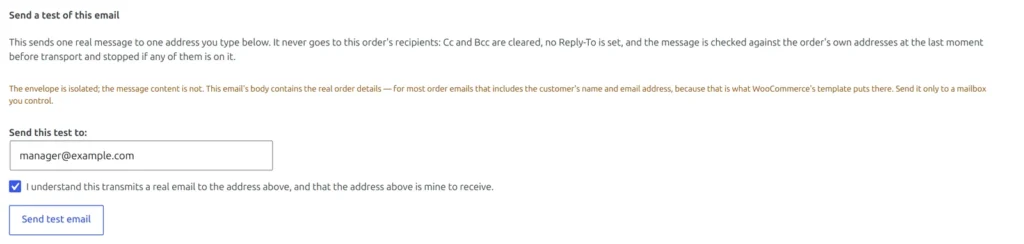
Test email form on a WooCommerce order with one address field

Type one email address and send yourself a test of the real order email. It goes only to that address: never to the customer, never to the store’s normal recipients, and with Cc, Bcc and Reply-To removed. If the address belongs to the order, the test is refused.

The content uses the real order, so it can include that customer’s details. Send the test only to a mailbox you control.

Resend without changing the order status

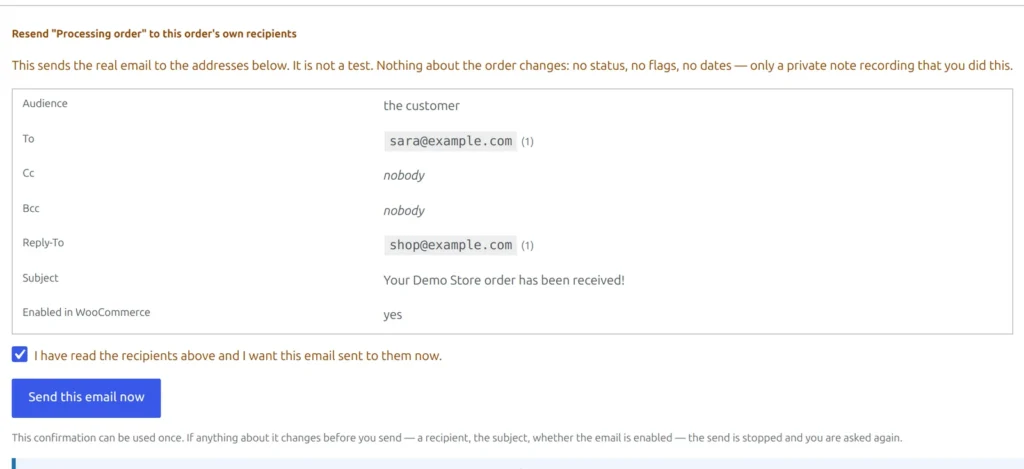
Confirmation screen listing every recipient before a WooCommerce email is resent

Resend any supported email to its normal recipients directly from the order. The order status stays exactly as it is, so there is no switching an order back to Processing just to send the Completed order email again.

This includes the New order notification, which WooCommerce automatically sends only once per order. You can deliberately resend it to the store’s configured recipients without custom code.

Send an email you have switched off

Sometimes an email is disabled on purpose, such as for imported orders that should not receive an automatic message. You can still send it manually for one order. The plugin warns you that it is switched off and requires an additional Send anyway acknowledgement.

It only sends to the people you confirmed

Before a resend, the confirmation lists every address the email will reach. At sending time, the plugin resolves the recipients again. If anything changed after confirmation, the operation stops without sending.

The outgoing envelope is checked too. If an address was added or one is missing compared with the confirmed set, the message is refused. Each confirmation is single-use, so a double-click or page refresh cannot use that confirmation twice.

Results that do not overclaim

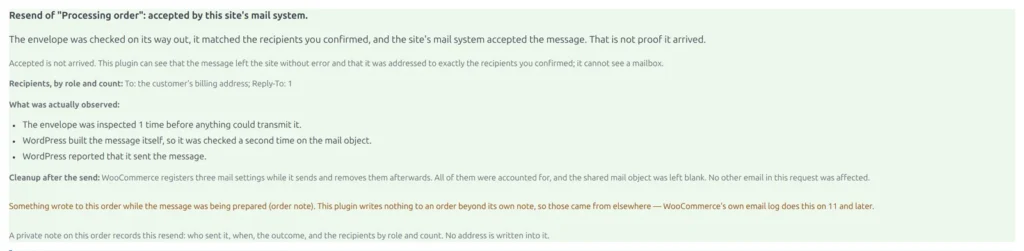
WooCommerce order email resend result accepted by the site's mail system

After a sending operation, the panel reports one of four plain outcomes: accepted by the site’s mail system, refused before sending, failed, or not verified. It never claims that a message was delivered because a WordPress plugin cannot see into the recipient’s inbox.

If the store sends mail through a service such as SendGrid, Mailgun or an SMTP integration that hides part of the process, the result is not verified rather than an unsupported success claim.

A private order note records each operation

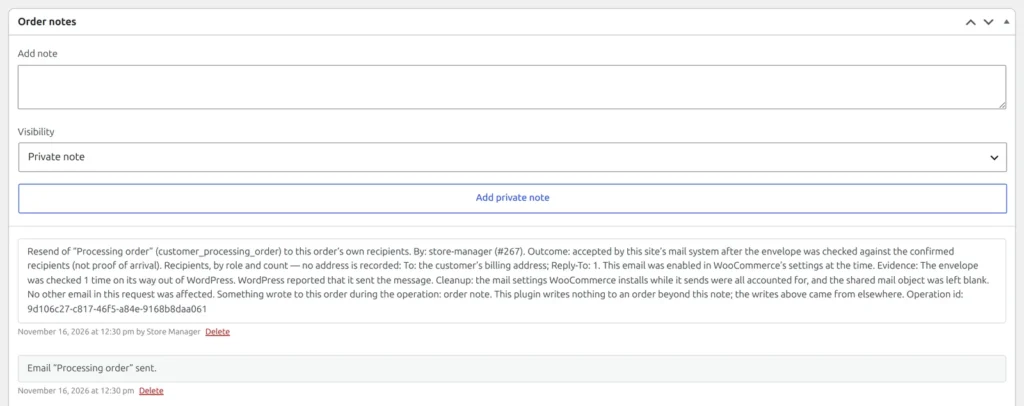
Private WooCommerce order note recording an order email resend

Every completed test-send or live-resend operation adds a private audit note to the order. It records who initiated it, when it happened, which email was used, whether that email was enabled, and the result.

Recipient addresses are not copied into the note. Test destinations are recorded as non-reversible, length-only shapes, while live recipients are recorded by role and count. WooCommerce or another email integration may also add its own diagnostic note; the plugin reports detected writes rather than hiding them.

Seven supported WooCommerce order emails

  • To your store
  • New order
  • Cancelled order
  • Failed order
  • To the customer
  • Order on-hold
  • Processing order
  • Completed order
  • Customer invoice / order details

Emails added by other plugins are listed as not offered, together with the reason. Version 1.0 does not guess who an unknown email is for.

Free, with no paid tier

There is no Pro version, upgrade prompt or feature held back. Preview, isolated test sending, confirmed live resending and private audit notes are included in the free plugin on WordPress.org.

It needs no external account and makes no telemetry or SaaS requests of its own.

What it does not do

It does not design or edit email templates, replace an SMTP or transactional mail provider, guarantee inbox delivery, send SMS or WhatsApp messages, or resend messages in bulk or on a schedule.

Need a different email for particular products? See Custom Emails Per Product for WooCommerce.

FREQUENTLY ASKED QUESTIONS


How do I resend a WooCommerce order email?

Open the order, find the email in the Order emails panel, click Resend, check the recipients and confirm. It goes to the email’s normal recipients, and the order status does not change.


Can I resend the WooCommerce New order notification?

Yes. WooCommerce itself automatically sends the New order email only once per order. This plugin lets an authorised operator deliberately resend it to the store’s configured recipients without custom code.


Why didn't my customer get the New order email?

The New order email goes to the store, not the customer. The customer’s confirmation is normally the Processing or On-hold email. The panel identifies each email’s audience and recipients so you can choose the correct one.


Which WooCommerce email is the order confirmation?

Usually the Processing order email, or Order on-hold for payment methods such as bank transfer. Customer invoice / order details is a separate email that can be sent manually. The panel shows each email’s audience and recipients side by side.


Can I resend the Completed order email without changing the status?

Yes. Resend it from the order and the status remains unchanged. You do not need to switch the order to Processing and back to Completed.


Can I send a WooCommerce test email with real order data?

Yes. Enter one address you control and send a test of any supported email for that order. It goes only to that address, never to the customer or the email’s normal recipients.


Does it change the order in any way?

The plugin itself does not change the order status or write WooCommerce’s email-sent flag. It adds one private audit note after a completed test send or live resend. WooCommerce or another email integration may also add its own diagnostic note, and the panel reports detected writes.


What happens if the recipients change after I confirm?

The resend stops without sending. The plugin resolves the recipients again at sending time, and the resulting set must match what you confirmed.


Does accepted mean the email was delivered?

No. Accepted means the site’s mail system took the message. Inbox delivery still depends on the mail transport, DNS authentication, spam filtering and the recipient’s provider.


My WooCommerce emails are not arriving. Will this fix it?

It is not an SMTP or inbox-delivery tool. It reports whether an operation was refused, failed, accepted or not verified, which helps identify where to investigate next.


Is it a WooCommerce email customizer?

No. It does not change how emails look. It shows, previews, tests and resends the order emails the store already uses with its current templates.


Does it work with custom emails or custom order statuses?

Not in version 1.0. It supports WooCommerce’s seven core order emails. Other email classes are shown as not offered rather than handled on a guess.


Does it work with HPOS?

Yes. It works with High-Performance Order Storage and with the classic WooCommerce order screen.


Is it free?

Yes. There is no Pro version, licence key, external account or tracking.