WOOCOMMERCE ADDRESS BOOK PLUGIN

Give returning customers a faster way to reuse the addresses they already know.

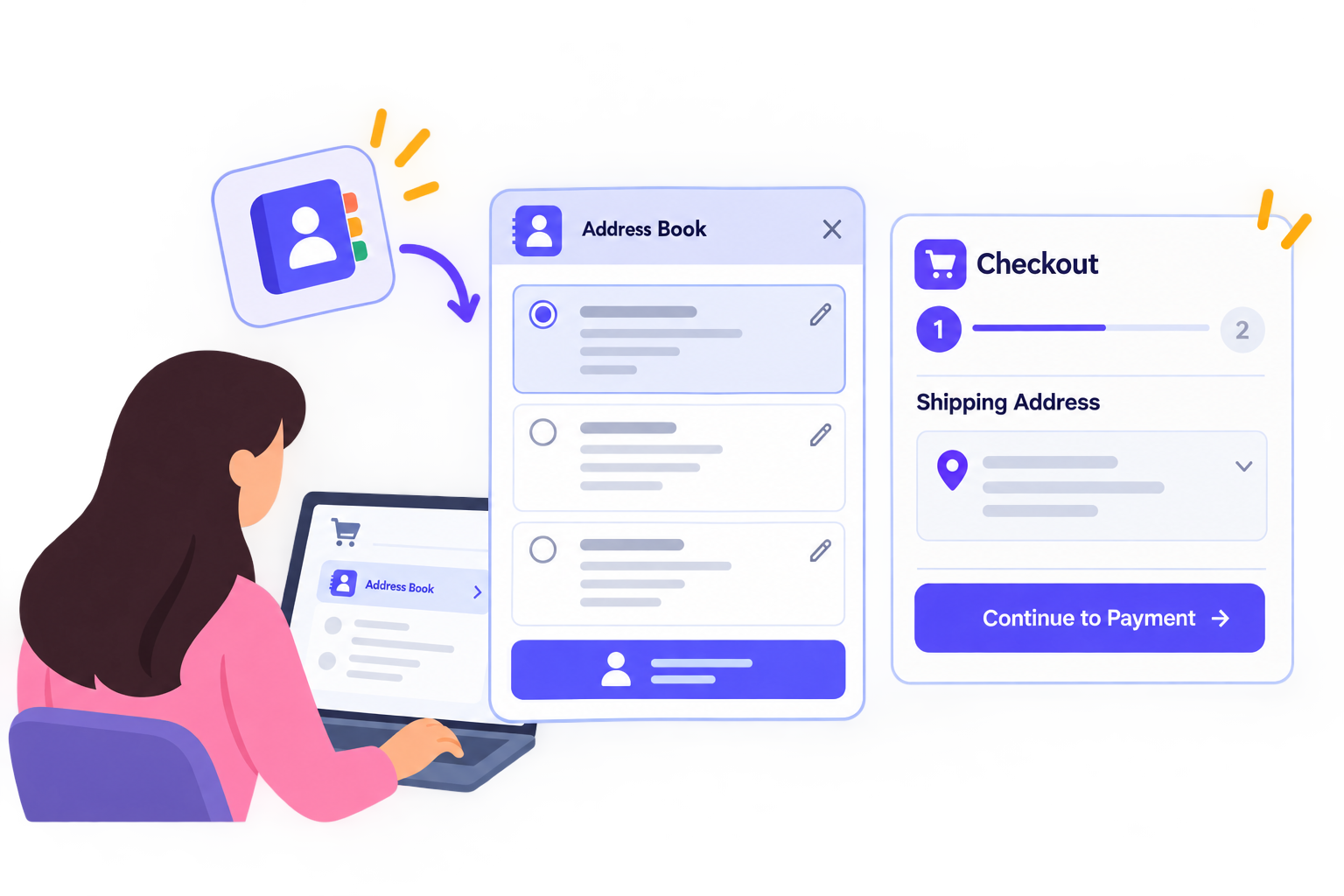
Extonify Address Book for WooCommerce is a free WooCommerce address book plugin that lets logged in customers save, label and reuse multiple billing and shipping addresses from My Account, Classic Checkout and the Checkout Block.

Store staff can manage the same saved addresses from WordPress user profiles and WooCommerce orders. No external address API. No API key. No telemetry. No external Extonify account required. Saved Address Book entries stay in your WordPress database.
USES YOUR WOOCOMMERCE THEME INSTEAD OF FIGHTING IT

Extonify uses WooCommerce’s public form and button conventions and keeps its own front end styling structural.

That means buttons, inputs and controls inherit the site’s theme rather than forcing a separate Extonify color scheme onto the checkout.

The interface is designed for responsive layouts, keyboard use and RTL languages.

REQUIREMENT AND COMPATIBILITY

  • WordPress: Latest version
  • WooCommerce: Latest version
  • PHP: Latest supported version
  • Checkout Block saving: Requires a compatible WooCommerce version
  • Order storage: HPOS and legacy order storage
  • Checkout: Classic Checkout and Checkout Block
  • Multisite: per site activation

Network activation is not supported. Activate the plugin individually on each site that needs an Address Book.

Save the first address directly at checkout

WooCommerce checkout showing the option to save a new billing or shipping address

Customers do not need to visit My Account before they can start using the address book. When a logged in customer reaches a supported checkout with an empty Address Book, they can still choose:

  • Save this address → Save as a new billing or shipping address

They can give it an optional nickname and complete the order normally. The new address is then available in their Address Book for the next purchase.

This makes the address book workflow useful from the first order onward, rather than requiring customers to configure their account first.

Save multiple addresses. Reuse them when they matter

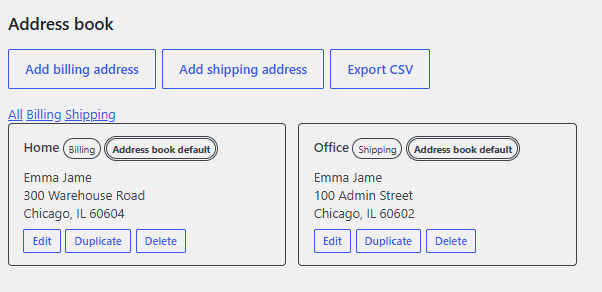
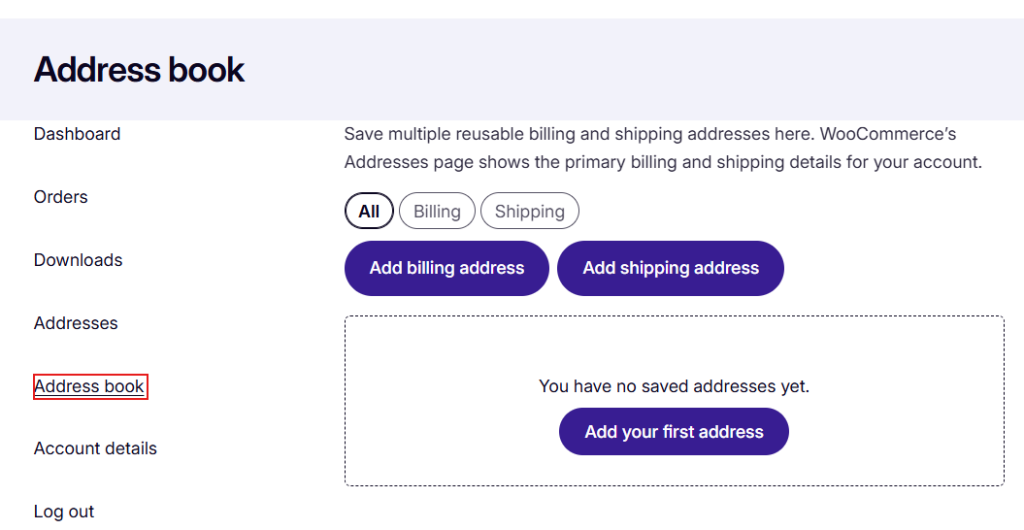
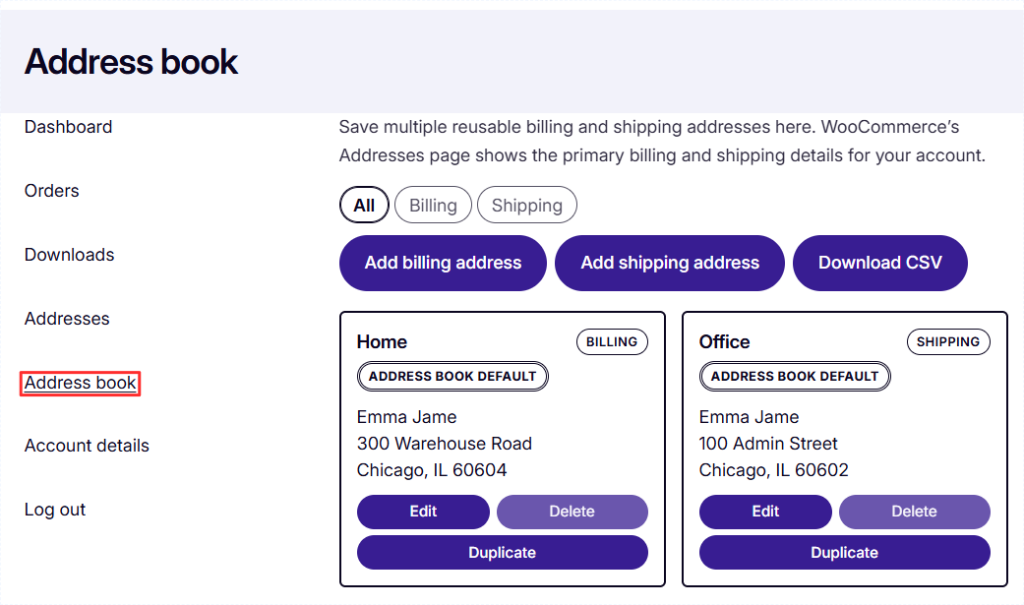
WooCommerce Address Book showing saved billing and shipping address cards in My Account

A WooCommerce customer profile normally keeps one primary billing address and one primary shipping address. Real customers may need more.

A shopper may order to Home, use a different address for Work, keep a Warehouse address for business purchases, or regularly send an order to a family member.

Extonify adds a dedicated Address book in My Account so those reusable addresses do not have to be typed from scratch on every order.

Each saved address can have a simple nickname such as:

Home · Office · Warehouse · Mum’s place

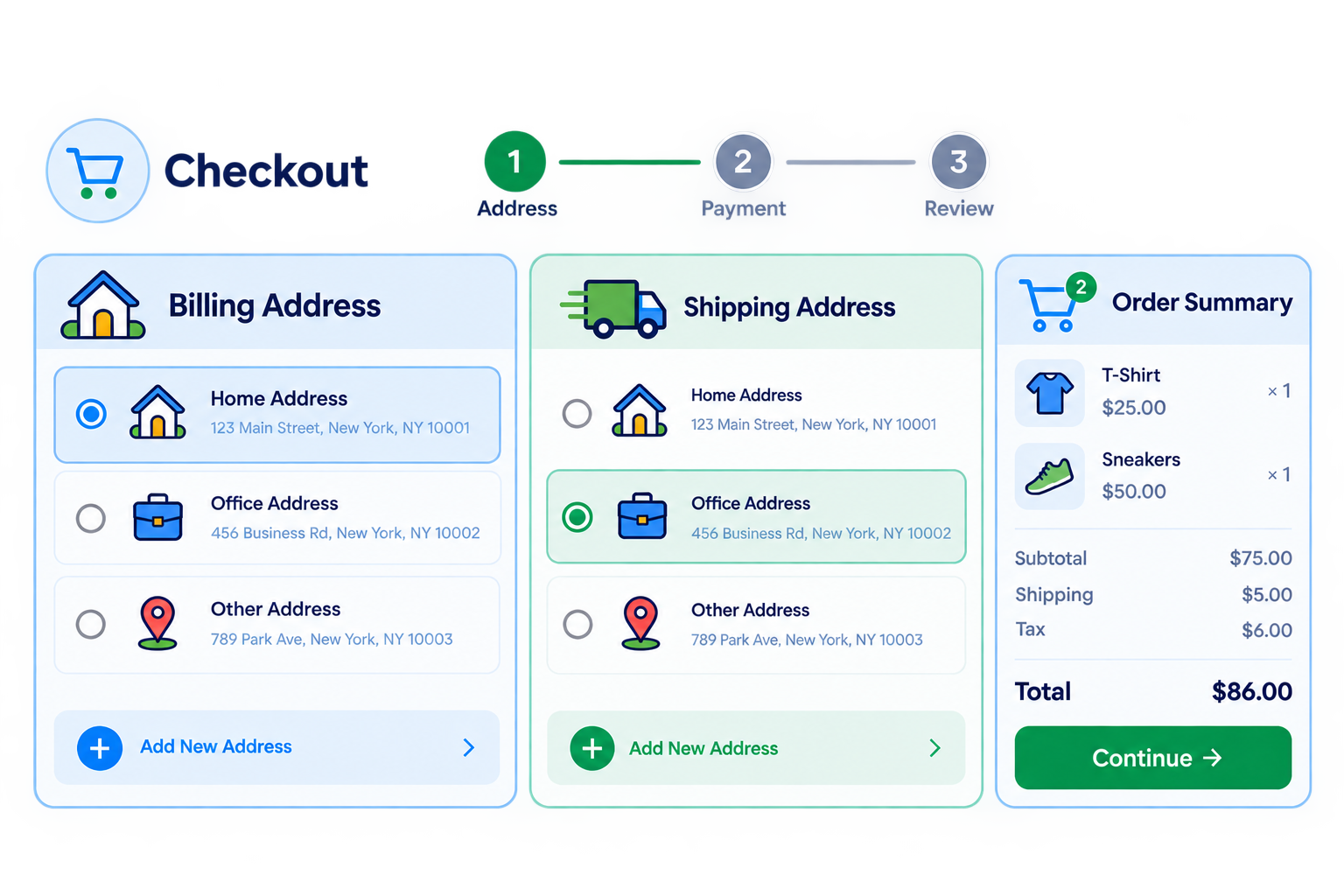
Billing and shipping address books are kept separate, and each type has its own Address Book default.

A dedicated Address Book in My Account

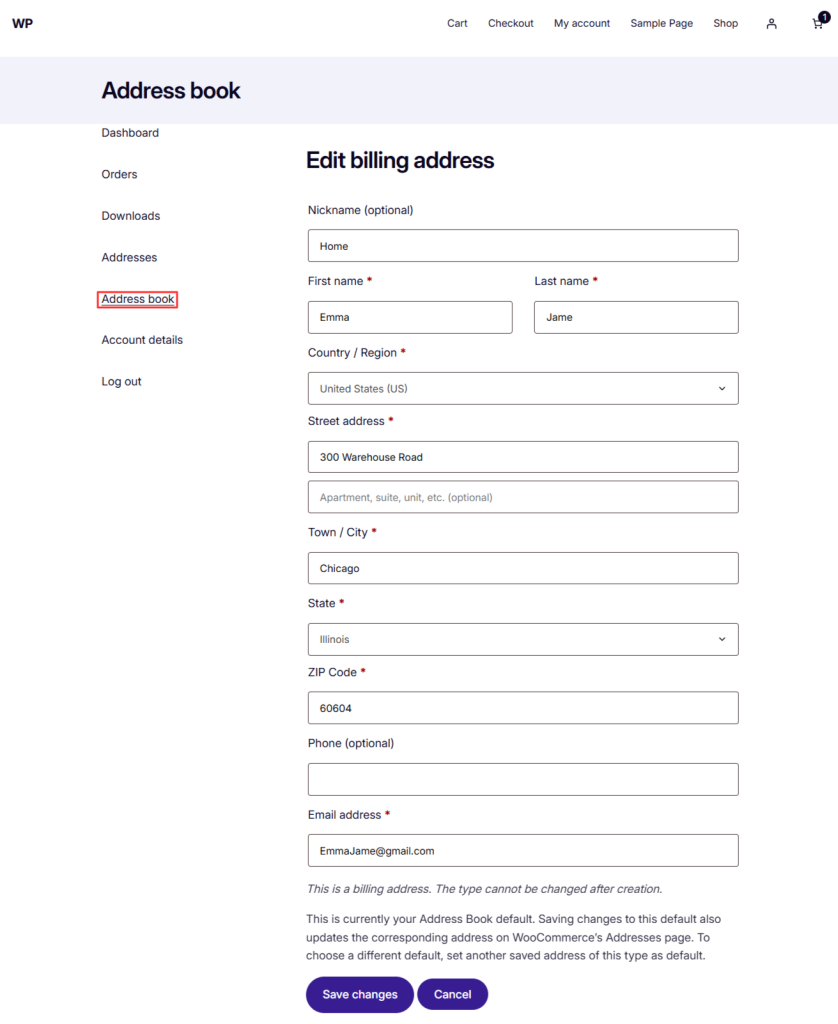
Add and edit saved address form in Extonify Address Book for WooCommerce

Customers manage reusable addresses from their own My Account → Address book screen without replacing WooCommerce’s native Addresses page.

  • They can:
  • Add billing and shipping addresses
  • Give addresses useful nicknames
  • Edit saved addresses
  • Duplicate an address
  • Delete addresses with confirmation
  • Set separate Address Book defaults for billing and shipping
  • Filter saved entries by billing or shipping
  • Export their own saved addresses to CSV

The first saved address of each type automatically becomes that type’s Address Book default.

When another saved address is explicitly set as default, Extonify also updates the corresponding primary WooCommerce address.

Works with Classic Checkout and the Checkout Block

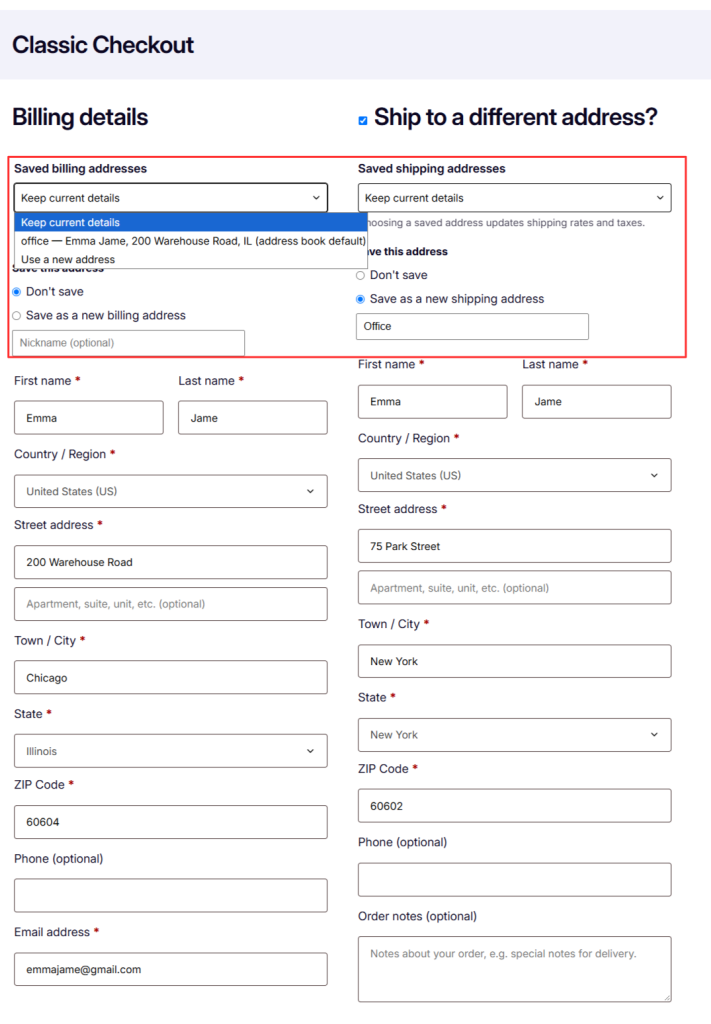
WooCommerce Classic Checkout with saved billing address selector
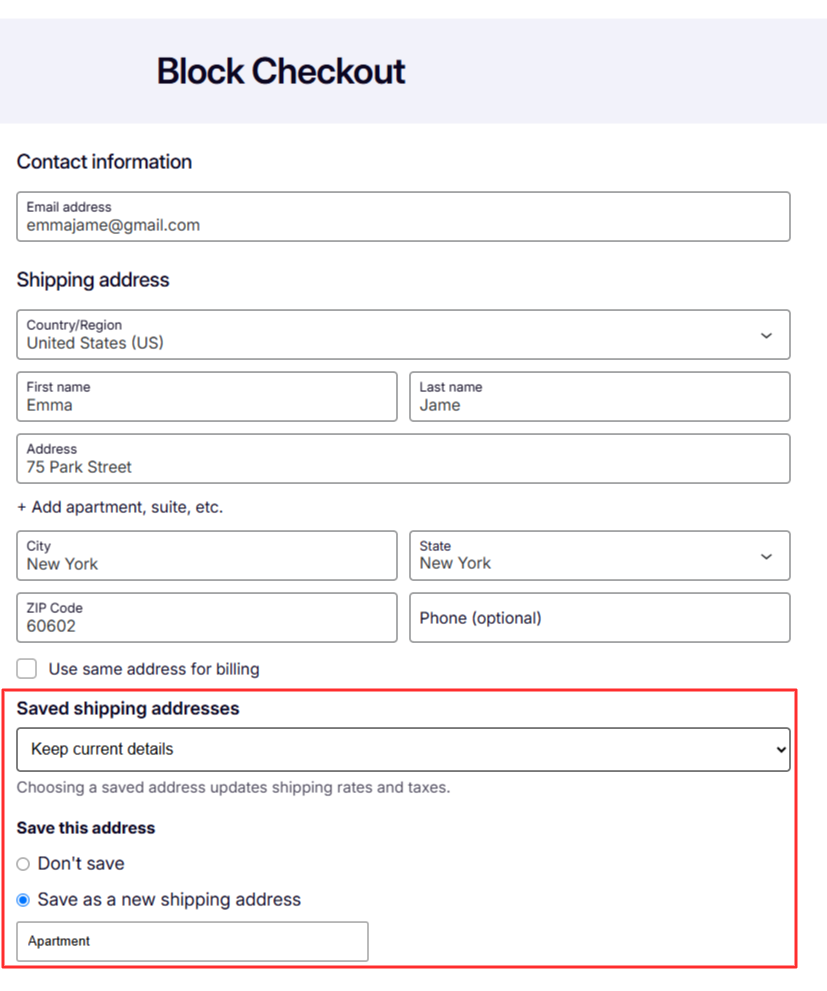
WooCommerce Checkout Block with saved address selector and Save this address options

Extonify supports both WooCommerce checkout experiences.

  • Classic Checkout

From WooCommerce 8.9+, customers can select previously saved billing or shipping addresses, save a new address during checkout, or update an existing saved address they have edited.

When a saved shipping address changes the checkout destination, WooCommerce recalculates the applicable shipping and tax information.

  • Checkout Block

Saved address selection is supported from WooCommerce 8.9+.

Saving a new or edited address directly from the Checkout Block is available on WooCommerce 9.9+, where the public Checkout Block API required by the save flow is available.

There is no separate Block integration switch to configure.
Customers with no saved addresses still get the save controls; once addresses exist, the saved address selector appears as well.

Free admin address management

Address management is not limited to the customer facing checkout.

Store staff can work with a customer’s saved addresses directly in wp admin.

  • Manage addresses from the customer profile

From a WordPress user profile, authorized staff can view, add, edit, delete and manage saved billing and shipping addresses.

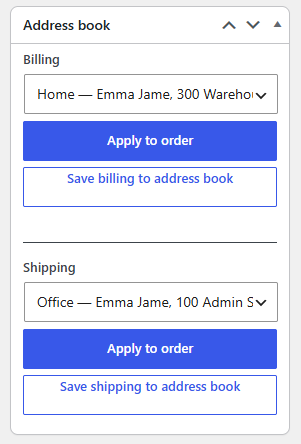
  • Apply a saved address to an order

On WooCommerce order screens, staff can select one of that customer’s saved addresses and apply it to the order’s billing or shipping fields.

  • Save an order address back to the Address Book

An address already stored on an order can also be copied into that customer’s Address Book with a nickname after confirmation.

These admin tools work with both High Performance Order Storage (HPOS) and WooCommerce’s legacy order storage.

Store owner controls

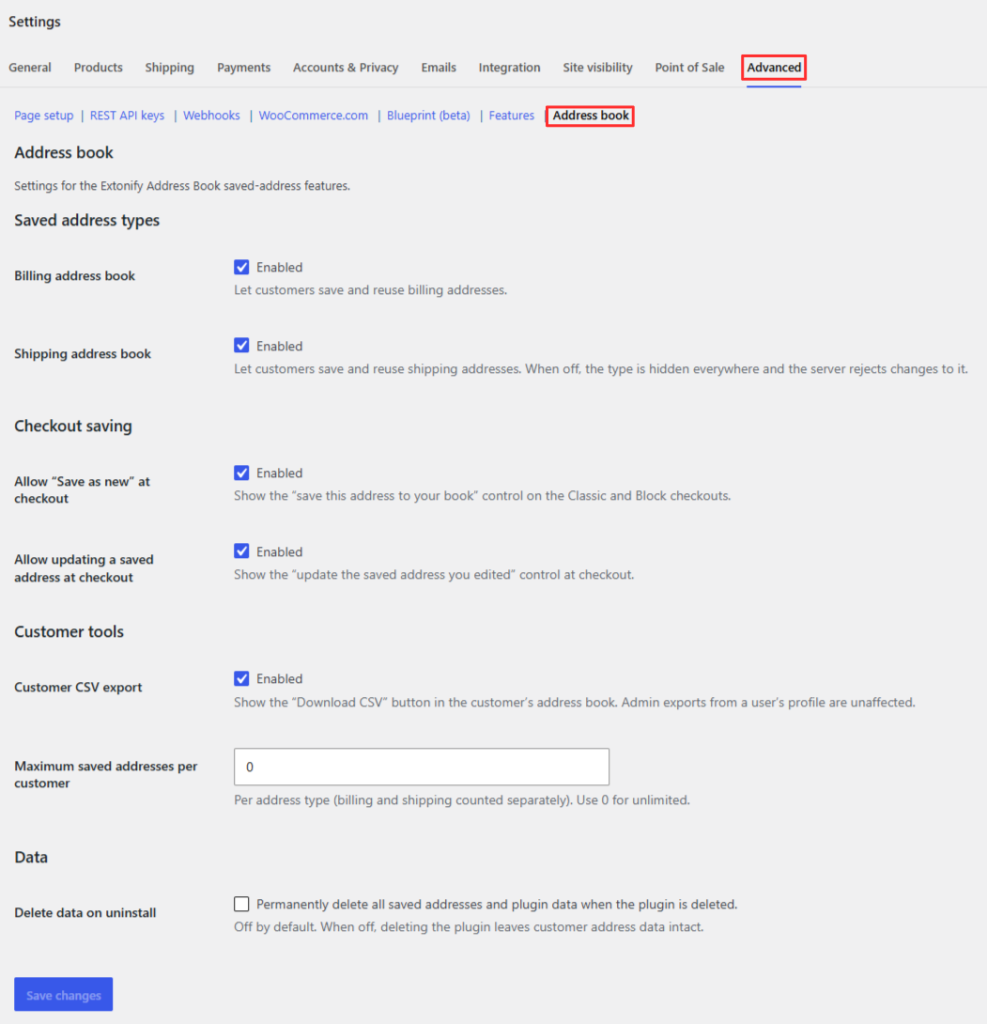
Extonify Address Book settings for billing shipping checkout saving CSV export and address limits

Extonify stays flexible without turning its settings page into another checkout builder.

From.

  • WooCommerce → Settings → Advanced → Address book

You can control whether the address book is available and how checkout saving behaves.

You can enable billing and shipping address books independently, allow or disable Save as new at checkout, allow or disable updates to existing saved addresses, set the maximum number of saved addresses per customer and type, show or hide customer CSV export, and choose whether plugin data should be removed when the plugin is uninstalled.

Set the address limit to 0 when you do not want to impose a maximum.

Intentional duplicates without accidental clutter

Exact repeat saves are guarded against so customers do not accidentally fill their Address Book with identical entries. At checkout, however, an intentionally reused destination can still be saved separately when the customer gives it a different nickname.

For example:

Home → 10 Main Street
Office deliveries → 10 Main Street

That lets the nickname represent the customer’s intent without turning every repeated checkout into another duplicate row.

Privacy first by design

Saved Address Book data is stored locally in your site’s WordPress database.

Extonify itself does not send saved addresses to an external address verification service, does not require an API key, and does not include telemetry or usage tracking.

The plugin also integrates with WordPress privacy tools so saved addresses can be included in personal data exports and removed through the personal data eraser.

By default, uninstalling the plugin does not delete saved Address Book data. Store administrators can explicitly enable cleanup when they want plugin data removed on uninstall.

WHAT EXTONIFY ADDRESS BOOK DOES NOT DO

A clear scope is better than installing a plugin for the wrong reason.

It is not postal address verification.

Extonify performs local WooCommerce address field checks and formatting. It does not check whether a building or delivery location exists in a postal or courier database.

It is not Google Places address autocomplete.

There is no Google Places API integration or paid address service dependency. Normal browser autofill can still work with appropriate address fields.

It is not multi destination shipping.

The plugin stores multiple reusable billing and shipping addresses. It does not split one WooCommerce order across several delivery destinations.

It is not an IP blocker or security plugin.

Address Book features are for logged in customers.
Normal WooCommerce guest checkout is left alone; guests do not receive a persistent personal Extonify Address Book.

FREQUENTLY ASKED QUESTIONS

Does Extonify Address Book work with the WooCommerce Checkout Block?

Yes.

Customers can select saved addresses in the Checkout Block from WooCommerce 8.9+. Saving a new or edited Address Book entry directly from the Block is available on WooCommerce 9.9+.

Can a new customer save their first address directly at checkout?

Yes.

A logged in customer does not need an existing Address Book entry before the save controls appear. They can choose Save as a new billing address or Save as a new shipping address, add an optional nickname and complete the order.

Can customers save separate billing and shipping addresses?

Yes.

Billing and shipping are managed independently, and each type has its own Address Book default. Store owners can also enable or disable either type separately.

What happens if the same address is saved again?

Extonify guards against accidental exact duplicates. During checkout, the same physical address can still be intentionally stored as another entry when the customer provides a different nickname.

Does this plugin provide WooCommerce address validation?

It performs local WooCommerce address-field checks and formatting, but it does not verify deliverability against a postal, courier or third party address database.

Does it include WooCommerce address autocomplete?

It does not provide Google Places style address lookup. Standard browser autofill may still offer addresses already saved in the customer’s browser.

Which address becomes the Address Book default?

The first saved billing address becomes the billing Address Book default, and the first saved shipping address becomes the shipping Address Book default.

Customers can explicitly choose another saved address as default. Saving changes to the current Address Book default also updates the corresponding primary address on WooCommerce’s native Addresses page.

Can store staff manage customer addresses?

Yes.

Authorized staff can manage saved addresses from the customer’s WordPress profile and use saved addresses from WooCommerce order screens.

Does it support guest checkout?

The plugin does not create persistent Address Book entries for guests. WooCommerce’s normal guest checkout continues to work.

Where are saved addresses stored?

Saved addresses are stored locally in the site’s WordPress database. Extonify does not require an external address service or API key.

Is it compatible with HPOS?

Yes.

Order related operations use WooCommerce’s order APIs and support High Performance Order Storage as well as legacy order storage.

Is the plugin free?

Yes.

Includes the customer Address Book, checkout integrations and admin management described on this page without locked premium functionality.